Admin portal guide

Activate a subscription with a cash payment

A new subscription stays Pending until its first invoice is paid. When the member pays in cash, record the payment on that invoice, attach the receipt and verify it. Once the invoice is paid in full, the subscription becomes Active.

Subscriptions›Invoices›Payments›Add
Scroll to walk through it ↓
Admin portal
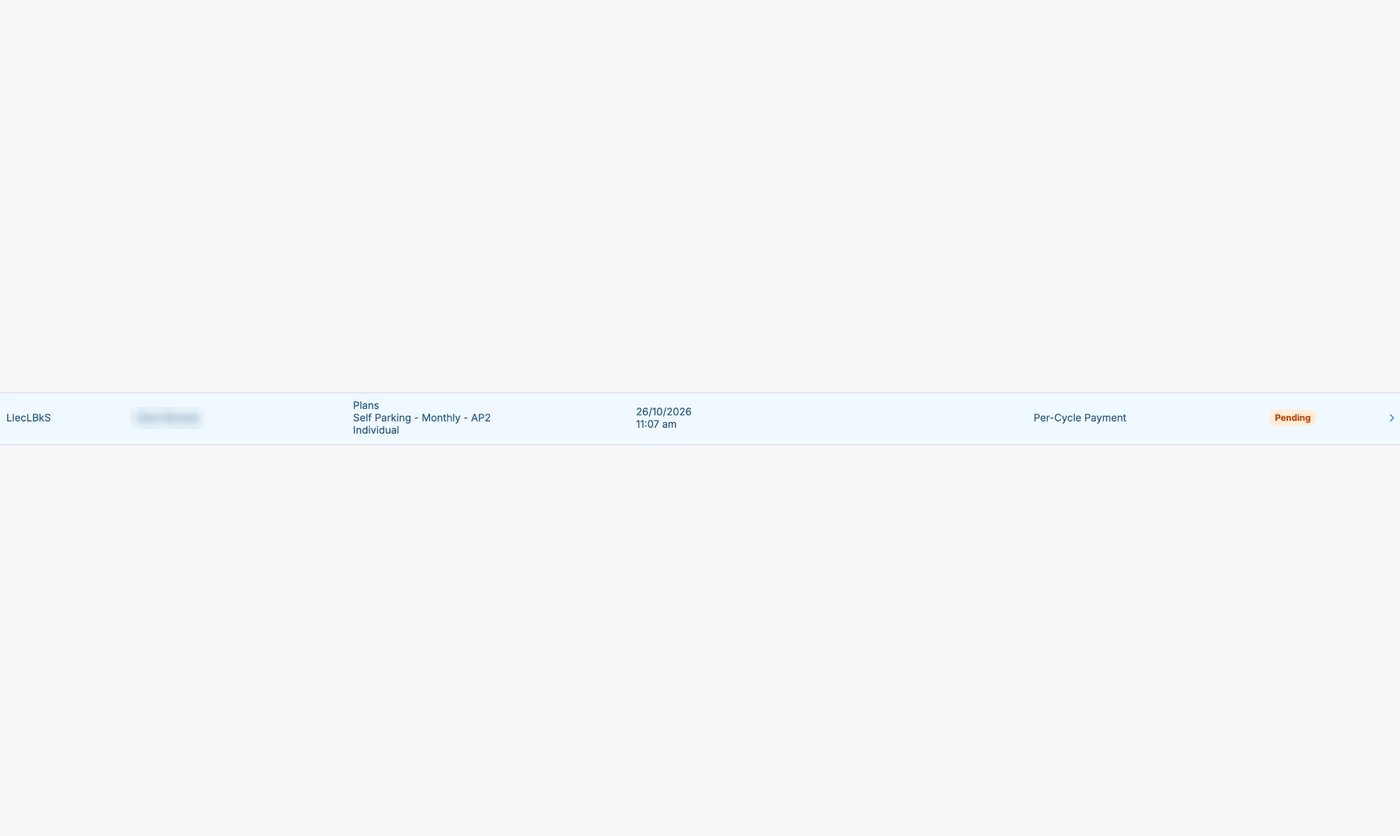
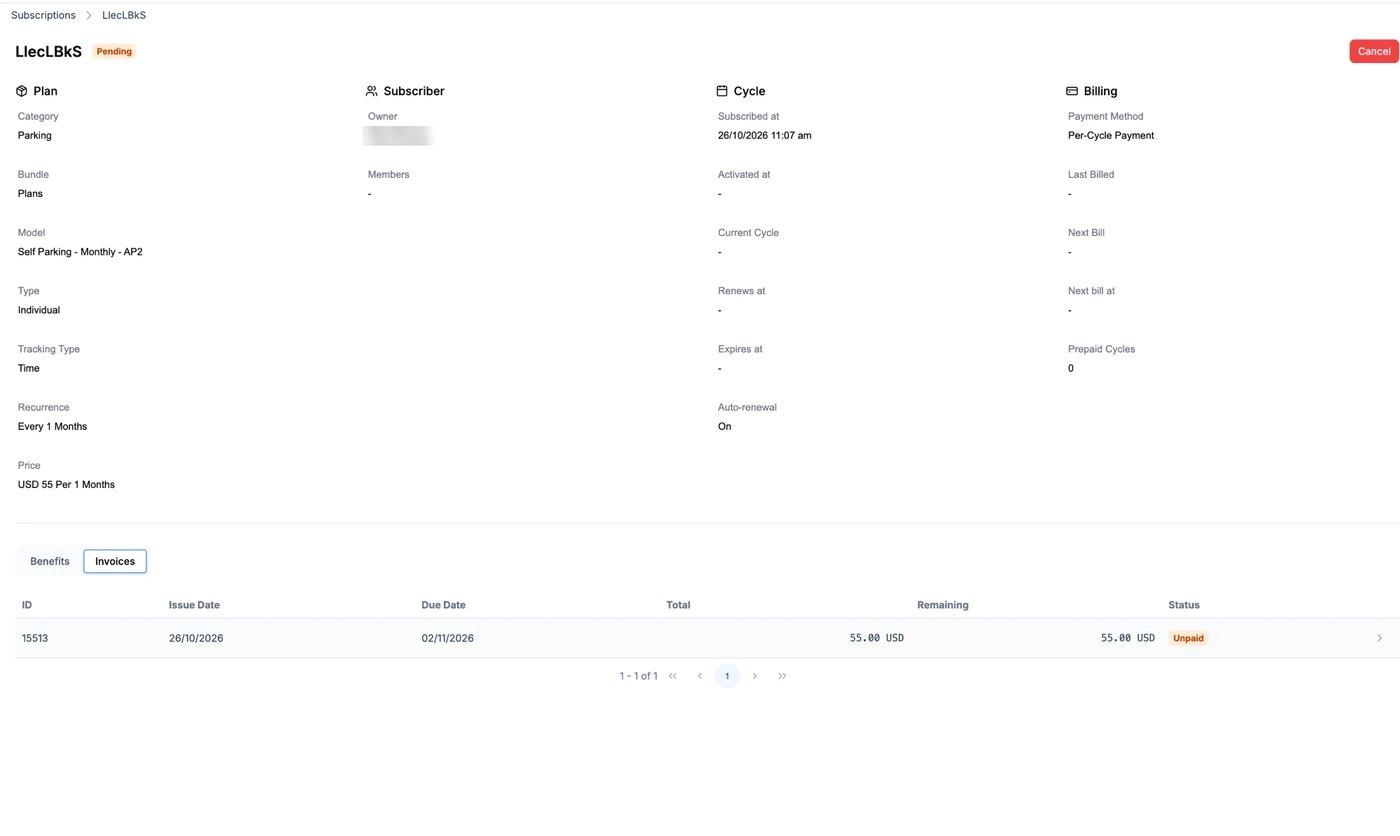
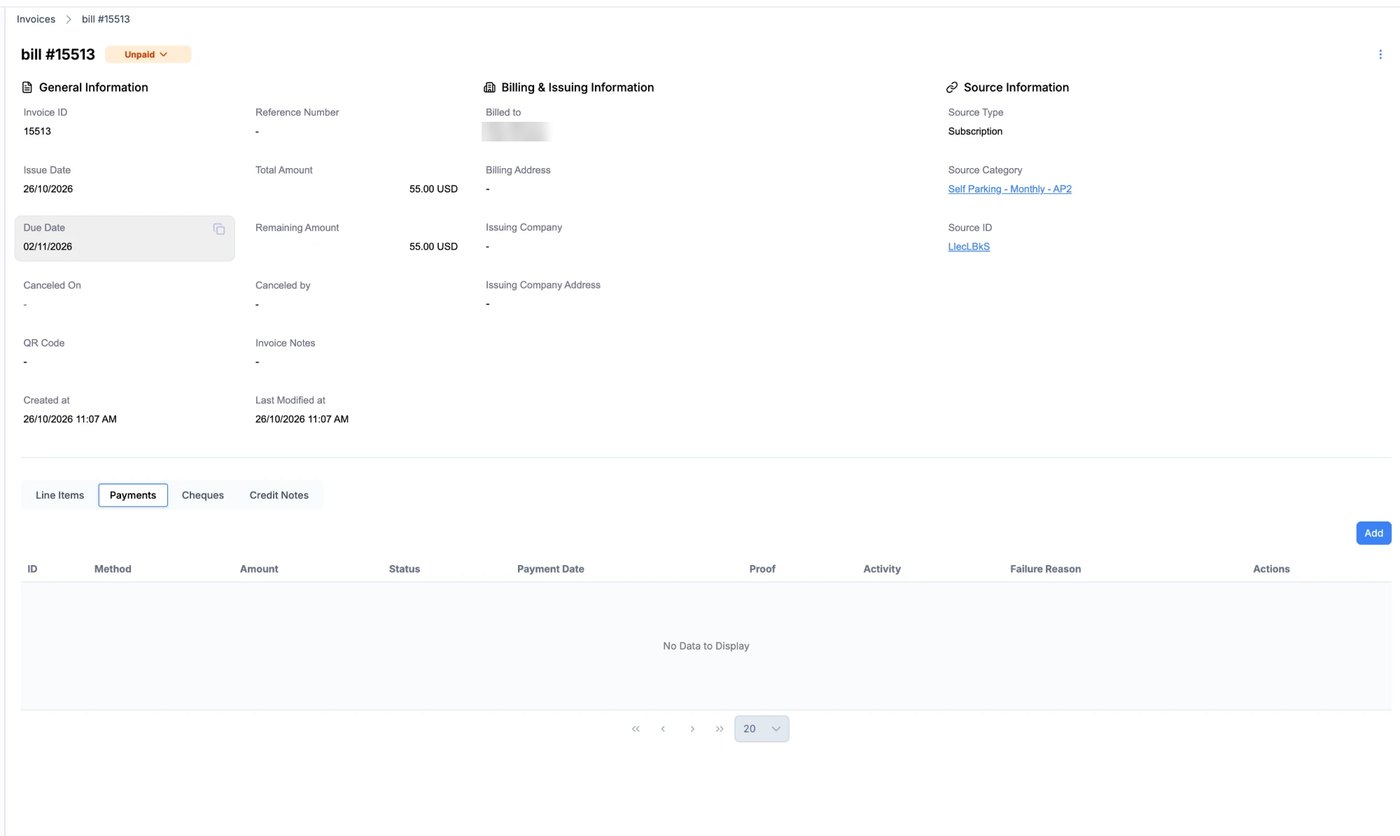
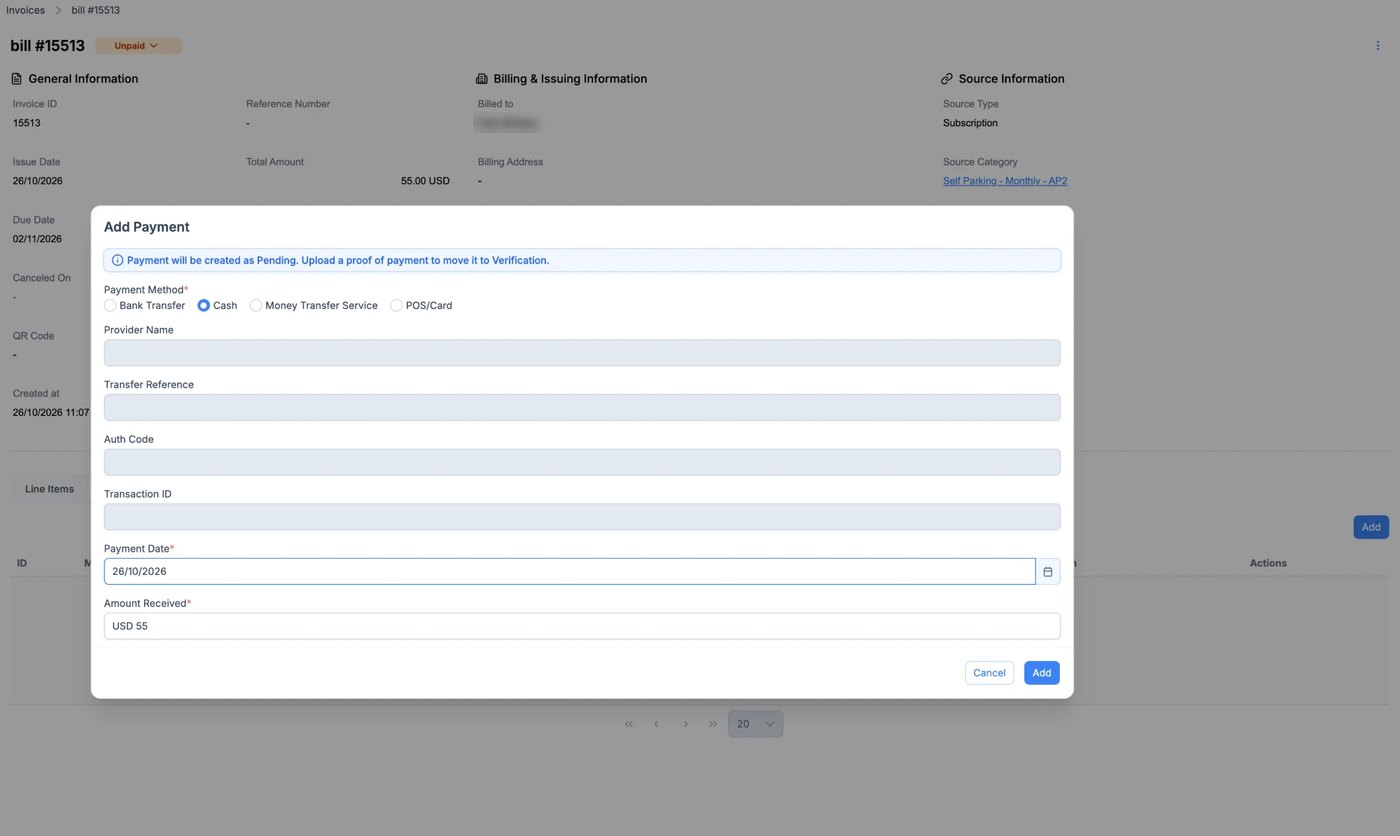
Subscriptions list with a Pending subscription Subscription details with the Invoices tab Invoice details with the Payments tab Add Payment dialog with Cash selected
Subscriptions

Go to Subscriptions and click the subscription you want to activate. It shows as Pending until its first invoice is paid.

Subscription

On the subscription page, open the Invoices tab.

Subscription

Click the Unpaid invoice. The Remaining column shows how much is still due.

Invoice

Check the Remaining Amount. The cash payment needs to cover all of it.

Invoice

Open the Payments tab.

Invoice

Click Add to record a payment.

Add Payment

Choose Cash as the payment method. The provider, reference and transaction fields aren’t needed for cash.

Add Payment

Set the Payment Date to the day the cash was received. Amount Received is already the full remaining amount, so leave it as it is.

Add Payment

Click Add. The payment is listed in the Payments tab as Pending.

Confirm the cash to activate

The new payment sits in the invoice’s Payments tab. Use the icons in its Actions column to move it through these statuses.

Pending

Choose Submit Proof of Payment and upload the cash receipt as a PDF, JPG or PNG, then click Submit.

Moves to Verification

Verification

Choose Verify and confirm. Verifying can’t be undone, so check the receipt and the amount first.

Moves to Successful

Successful

The amount is applied to the invoice. With nothing left to pay, the invoice is marked Paid.

Subscription activates

The subscription changes fromPendingtoActive